Execute a Run
The Work Plan run has started and it's time to execute the operations and steps. At this time, you can still add operations, steps, and dependencies.
When Work Plans include operations linked to workflows, you can view them from two perspectives during execution: the Work Plans view and the Workflows view. If you aren't using a workflow, use the Work Plan View below.
Work Plan View
- Navigate to Running to show all of the Work Plans currently being executed and their progress status.
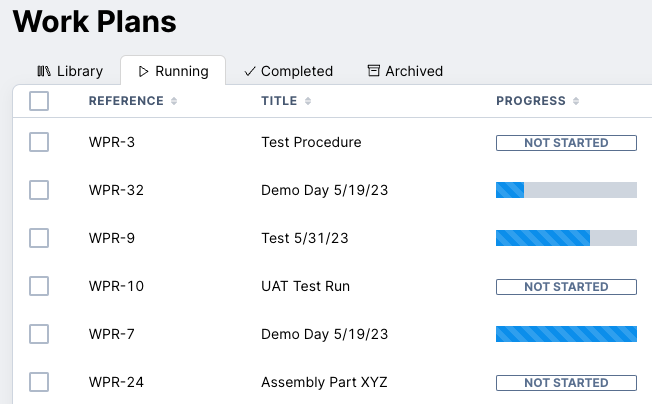
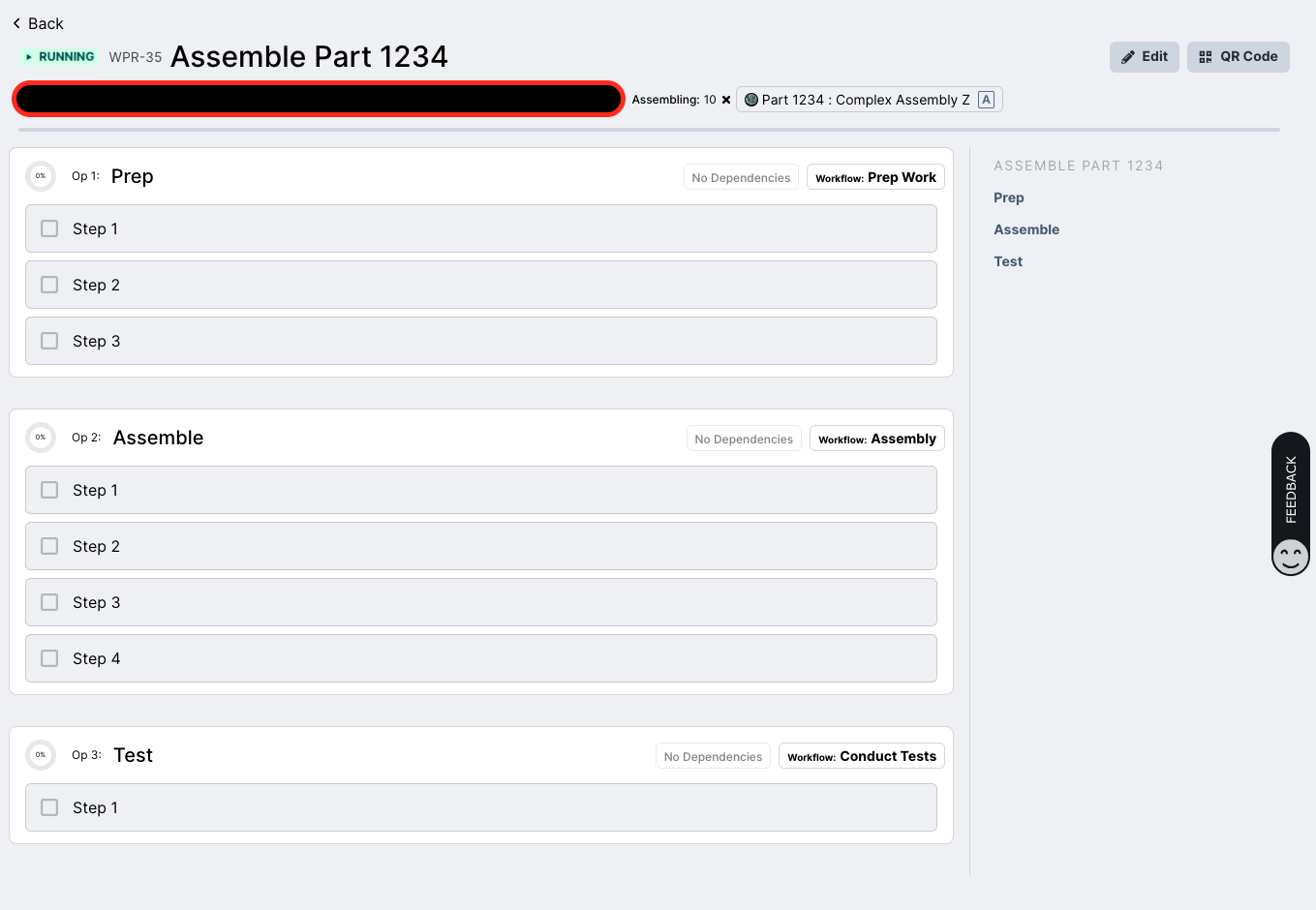
- Clicking on a Work Plan from the menu will take you to the running instance, where you can see the progress for each operation.
Edit a Run Instance
(If you don't need to edit your run, skip to Do Work and Check Off Steps.)
-
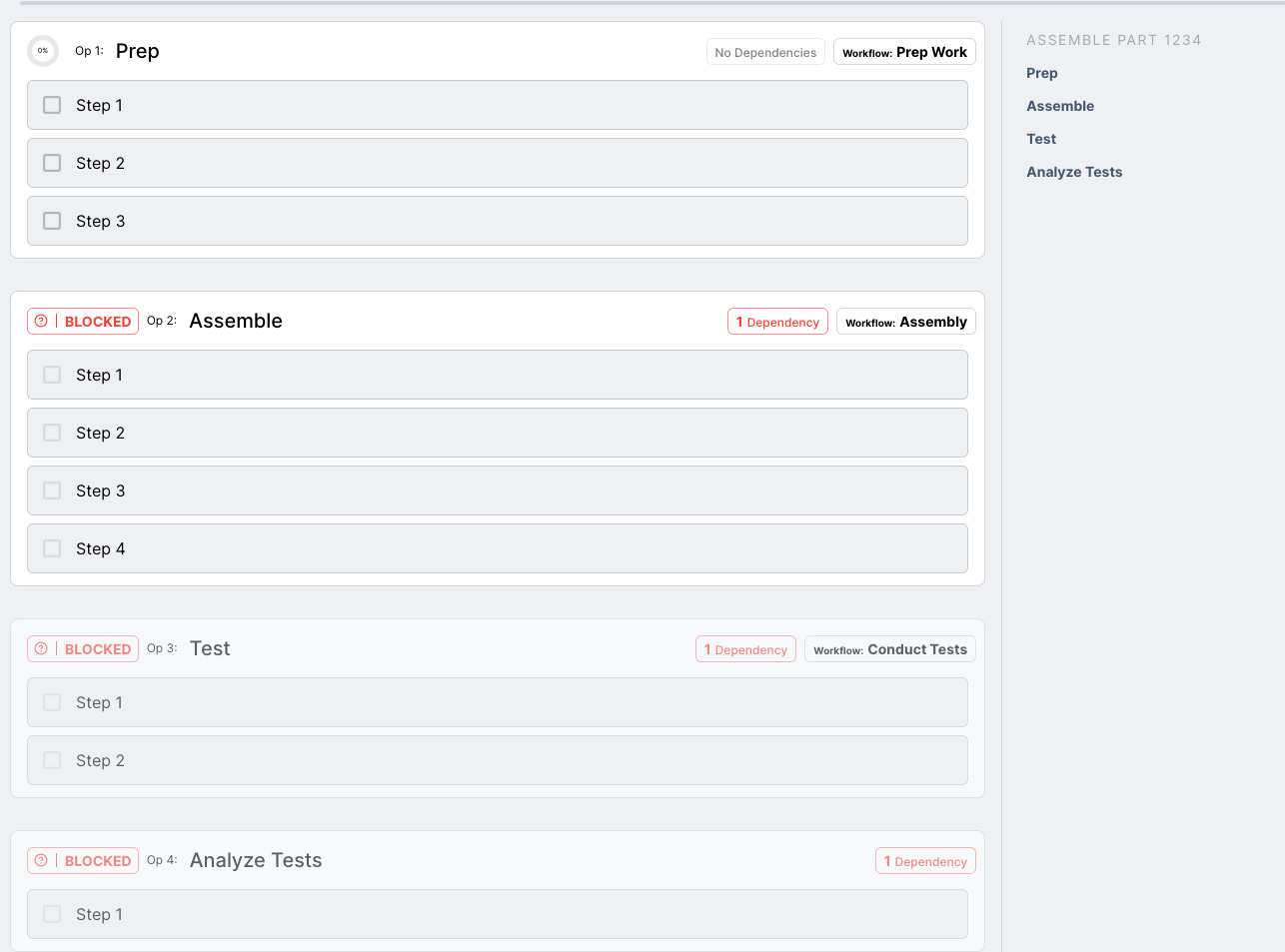
You can make edits specific to this run, including modifications to operations, steps, or other details. For our example, let's make the following adjustments:
- Add a final operation for "Analyze Tests".
- Add a step to the "Test" operation.
- Add dependencies to ensure work only starts when the previous step completes.
-
To accomplish this, click
Editfrom the 3 dots (elipses) menu.- To add operations, simply type into the + Add Operation box.
- Click
+within the operation box to add steps or other features. - Click on
Dependenciesto edit or add new dependencies. - Click
Done Editingat the top right when you're done.
Any edits made to a published Work Plan are for the Run instance only, not the template it was created from. If you want to make adjustments to the template so all subsequent runs have these modifications, you need to edit the template, which creates a new version.
The new run instance could look something like this:
Do Work and Check Off Steps
From the Work Plan run view, you can start work:
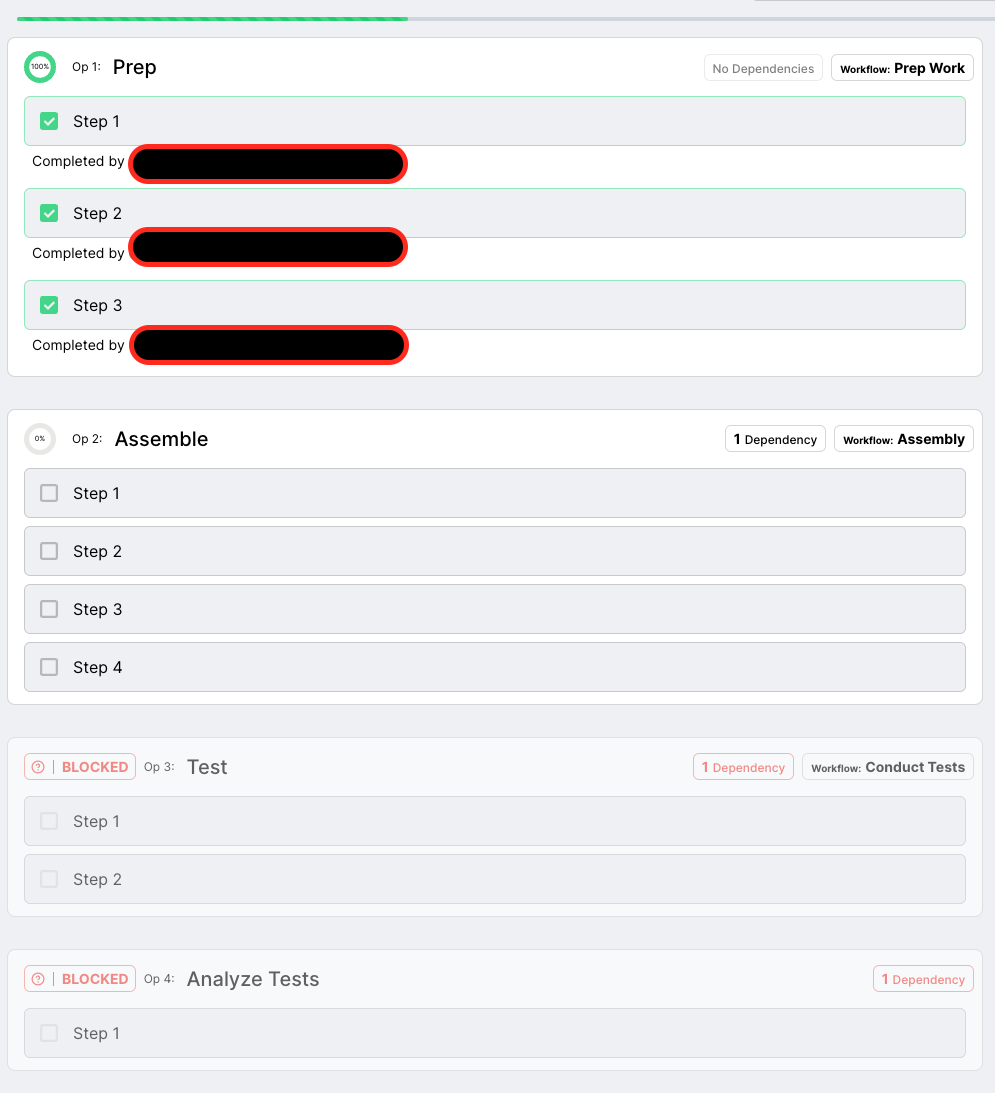
- As each step is completed, check the box for the step.
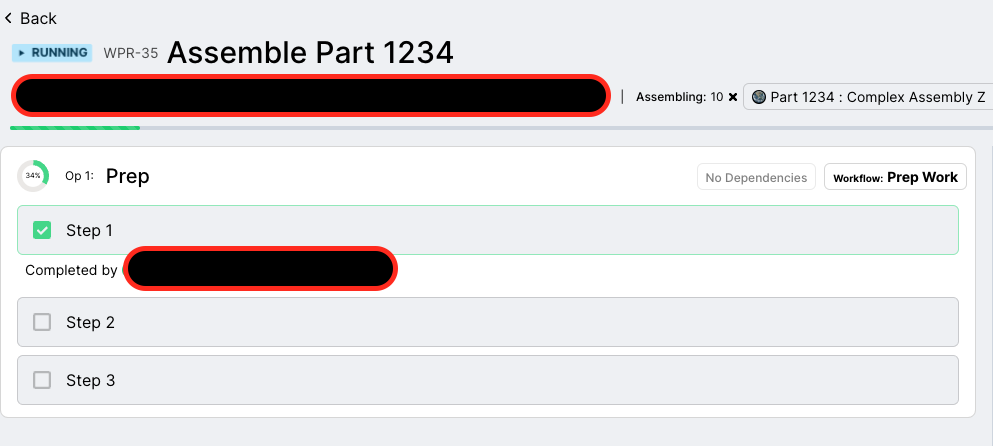
If you accidentally check the box or need to redo the operation steps, click the 3 dots at the top right of the operation box and select Re-run Operation. You can also skip the operation from the same menu.
Complete the Work Plan
- After checking off all of the steps in your Work Plan, you must click
Complete Work Plan. This ends the run.
If you are assembling a part associated with inventory, the inventory will now show as available.
:::
Boltline will track the progress of the Work Plan in this view AND in the workflow card view (if linked). If a status changes in one place, it's visible in the other.
Workflow Card View
- From your Work Plan, navigate to the operation that is linked to a workflow.
- Click the Workflow button at the top of the operation box. For our example, it's Workflow: Prep Work. This brings up a window for the workflow card.
::: Note: You must be in a Work Plan run, and not the template. :::
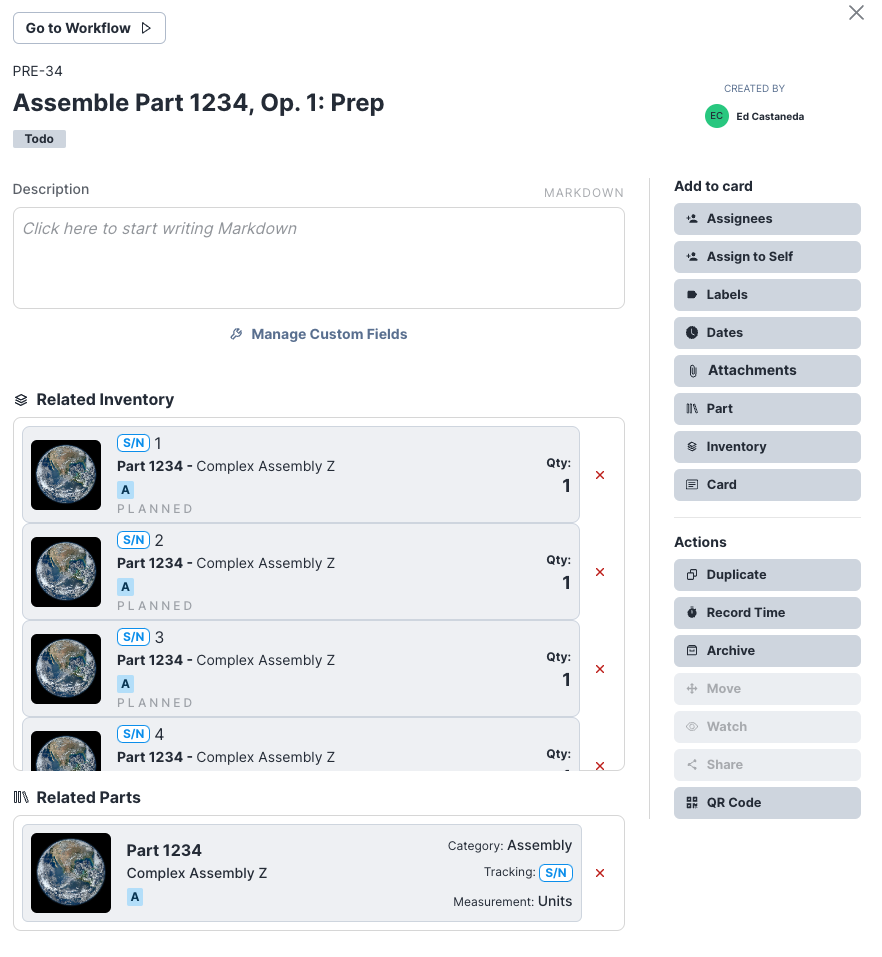
- Click the
Go to Workflowbutton on the top left of the window.
Boltline created the workflow card when the Work Plan run was started. In the quick view, you can see the progress of the Work Plan steps for the associated operation.
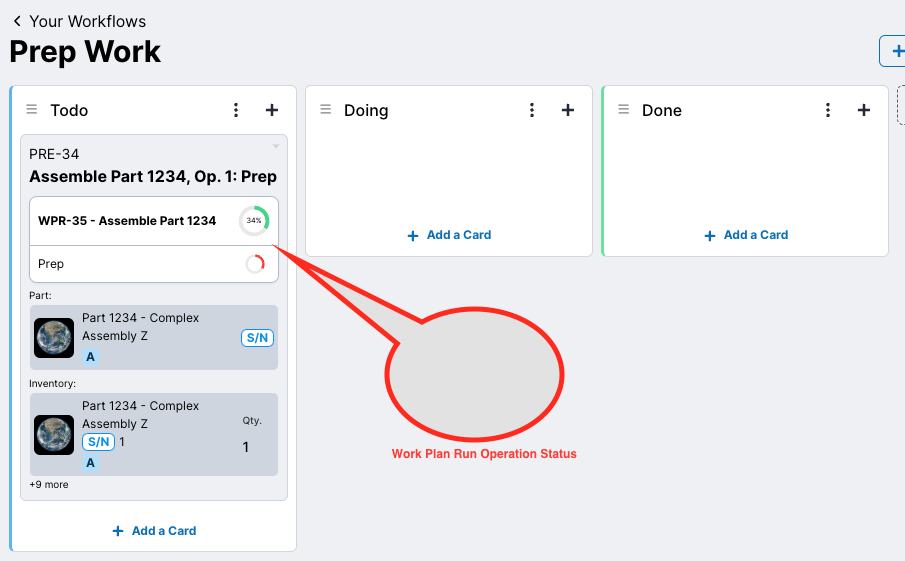
Doing Work from the Workflow
In some cases, people may want to focus on their specific work center or workflow, and not the broader Work Plan. They prefer to operate within their work center, with their completed work automatically updating the Work Plan. Fortunately, Boltline makes this process easy.
- Starting from your workflow, click the workflow card to bring up the details.
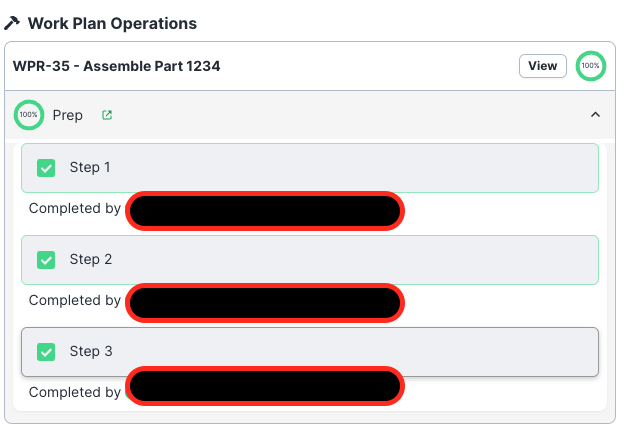
- Scroll down to the Work Plan Operations section and expand it.
::: Voila! The steps specific to the Work Plan operation are not only visible, you can complete work from this view and have it reflect directly in the Work Plan. :::
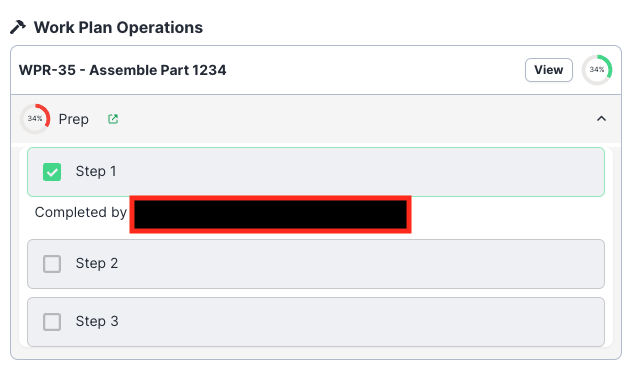
- Click through the remaining open steps to complete the Work Plan operation.
::: Success! The operation is 100% complete! :::
- Click the
Viewbutton on the Work Plan Operations header to see the updated Work Plan.