Work Timers
Use Work Timers in a Work Plan run to track who did the work, how long it took, and what they were working on. Boltline records each timer entry in the Work Plan so your team can review labor activity and export it later.
When Work Timers Are Available
Work Timers are available on Work Plan runs.
- They do not appear on Work Plan templates.
- The timer controls are hidden while the Work Plan is in edit mode.
If you need to start or stop a timer, return to the Work Plan run view first.
Start a Work Timer
-
Navigate to Work Plans and open the Work Plan run you want to work on. For example, you can open a run from Running.
-
In the top-right area of the Work Plan page, click the timer button.
-
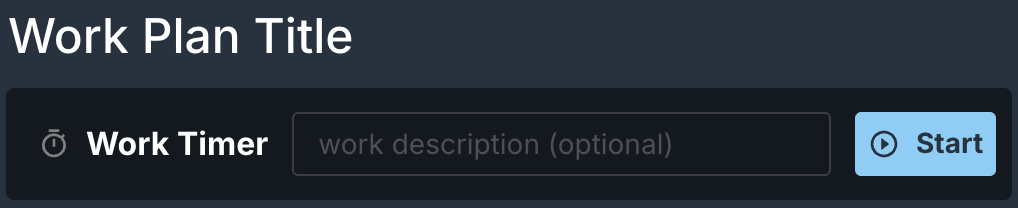
The Work Timer bar opens below the Work Plan title.
-
Optional: Type a note in the
work description (optional)field to describe the task you are about to do. -
Click
Start. -
The timer begins running immediately and shows the elapsed time in the Work Timer bar.
-
You can also press
Enterwhile your cursor is in the description field to start the timer.
If you navigate to another page inside Boltline while a timer is running, Boltline shows a warning dialog. Click Stay on Page to keep the timer running, or Leave Page to stop the active timer on that Work Plan and continue navigating away.
If you refresh the page or close the browser tab, your browser shows its own generic leave-page warning instead.
Stop a Work Timer
-
When you are ready to stop tracking time, click
Stopin the Work Timer bar. -
Boltline saves the timer entry to the Work Timers table on the same Work Plan run.
Complete a Work Plan with Active Timers
If a Work Plan run is completed while timers are still running, Boltline stops those timers automatically as part of the completion process.
- You do not need to stop each timer manually before completing the run.
- The stopped timer entries remain in the Work Timers table for review and export after the run is complete.
Review Work Timers
After you stop a timer, scroll down to the Work Timers section of the Work Plan run to review the recorded entries.
- The table includes User, Description, Start Time, End Time, and Duration.
- Each row shows who logged the time and when the work started and ended.
- If you entered a description, it appears in the Description column.
- If no timer entries have been recorded yet, the table shows No Data.
- After a timer is stopped, you can update the saved description, start time, or end time directly in the table.
Download Work Timer Data
- In the Work Timers section, click the download button.
- The download button is disabled until the Work Plan has at least one timer entry.
- The CSV download window opens. Its title is Download work timer data as CSV.
- Download the file to export the current Work Plan timer records.