Multi-Currency for Orders
Multi-currency lets you track and display order amounts in their native currency (for example, USD, EUR, JPY). Set an organization default that applies to new orders, or change the currency for an individual order.
Multi-currency is a tracking and display feature. Boltline does not convert amounts between currencies, calculate exchange rates, or handle Value Added Tax (VAT). Changing an order's currency only re-labels the order — unit prices and totals are not converted.
Supported currencies
| Currency | ISO 4217 code |
|---|---|
| United States Dollar | USD |
| Euro | EUR |
| Pound Sterling | GBP |
| Japanese Yen | JPY |
| Australian Dollar | AUD |
| Canadian Dollar | CAD |
| Chinese Yuan | CNY |
| Swiss Franc | CHF |
| New Zealand Dollar | NZD |
If you need a currency that is not listed, contact Customer Success at support@boltline.com.
Set the organization default currency
The organization default applies to all newly created orders. An admin may set or change it in the Default Currency menu in Organization Preferences.
Change the currency for an order
-
Open the order.
-
Click the three-dot menu (⋮) to the right of
Submit Order. -
Select
Change Currency. -
Choose a currency from the list.
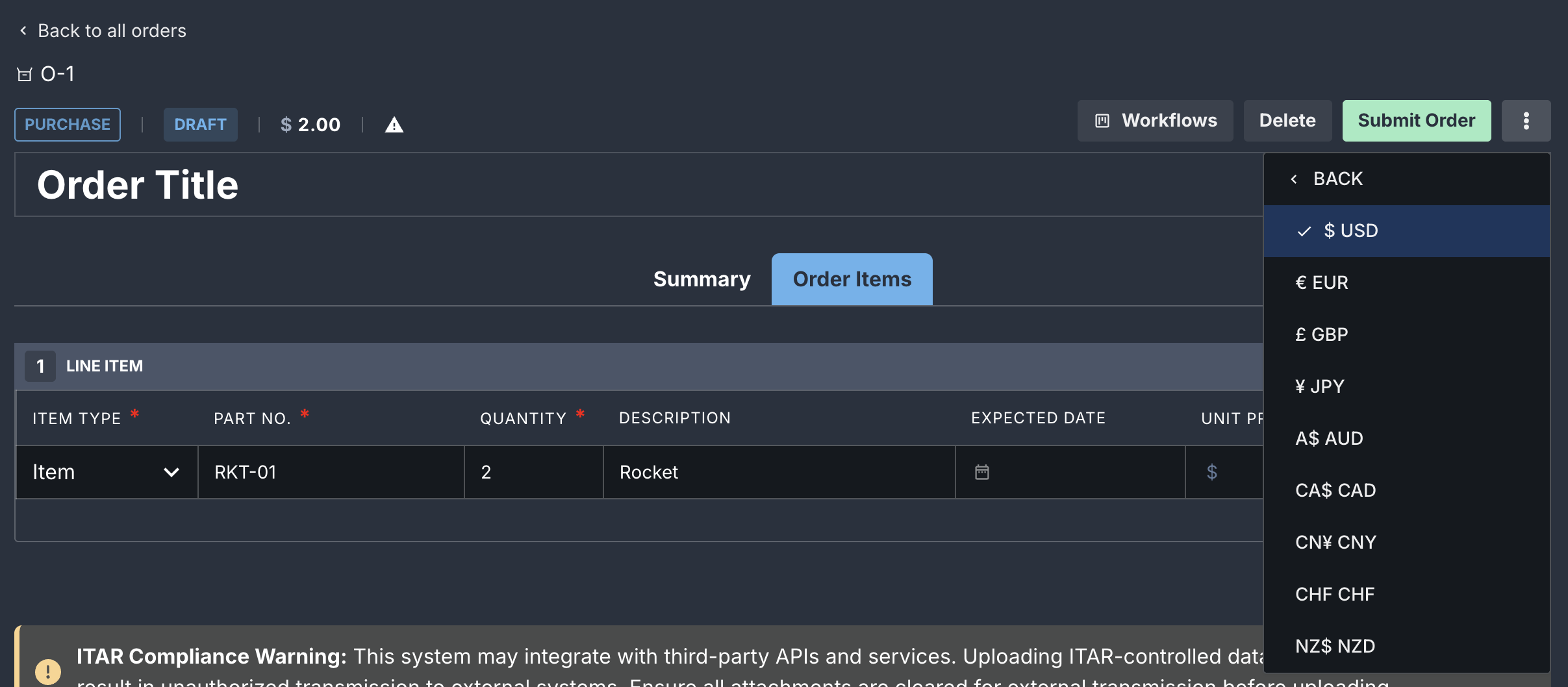
The change applies only to this order. Future orders continue to use the organization default.
Changing currency updates the currency code and symbol only. Unit prices and totals keep the same numeric value. If the order has already been submitted to a vendor or synced to an ERP, downstream artifacts (POs, invoices) may need to be updated manually.
When you can change the currency
Whether you can change the currency depends on whether your organization has an ERP connected:
- No ERP connected — you can change the currency at any time, in any order status.
- ERP connected — most ERPs only allow currency change while the order is in
DRAFT. Some ERPs do not support currency change at all.
If the Change Currency option is disabled, hover over it to see the rule for your ERP. If the option is hidden entirely, your ERP does not support changing the order currency.
Line items share the order's currency
All line items on an order use the order's currency. You cannot mix currencies within a single order. If you need to record items in a different currency, create a separate order.
Unit prices support up to 6 decimal places, so you can capture vendor pricing such as $1.234567 per component without truncation.
Orders created before multi-currency
Orders created before multi-currency was enabled do not have a currency assigned. On those orders:
-
Amounts display in USD format (for example,
$123.45) as a default presentation. -
The order page shows an information banner:
This is a legacy order shown in USD, multi-currency is supported in new orders only.
To submit a pre-multi-currency order, you must first assign a currency using Change Currency. This applies the chosen currency code to the existing amounts; it does not convert them.
FAQ
Does Boltline convert between currencies?
No. Multi-currency is for tracking and display only. Currency conversion, exchange rates, and FX accounting are not supported.
Does Boltline handle Value Added Tax (VAT)?
No. VAT is not supported by this feature.
Can a single order have more than one currency?
No. All line items on an order must share the order's currency.
When can I change an order's currency?
It depends on your ERP connection. See When you can change the currency.
Which ERP integrations support multi-currency?
Xero and Acumatica support multi-currency for purchase orders synced from Boltline. QuickBooks does not — the Change Currency option is hidden when QuickBooks is connected. For Xero or Acumatica, see the per-ERP setup guides: