Import an eBOM
Boltline allows you to import eBOMs and automatically creates any parts from the eBOM that do not exist in the Part Library.
To import an eBOM:
-
Navigate to the Parts Library in the left sidebar of Boltline.
-
Either create a part manually, or select a part that does not have an existing eBOM. The eBOM you import will be attached to this part.
-
Select the
eBOMtab in the bottom window. You will see EBom is Empty. -
Click the
+ Import .xlsxbutton at the bottom of the screen. -
This displays the Select Import File dialog.
-
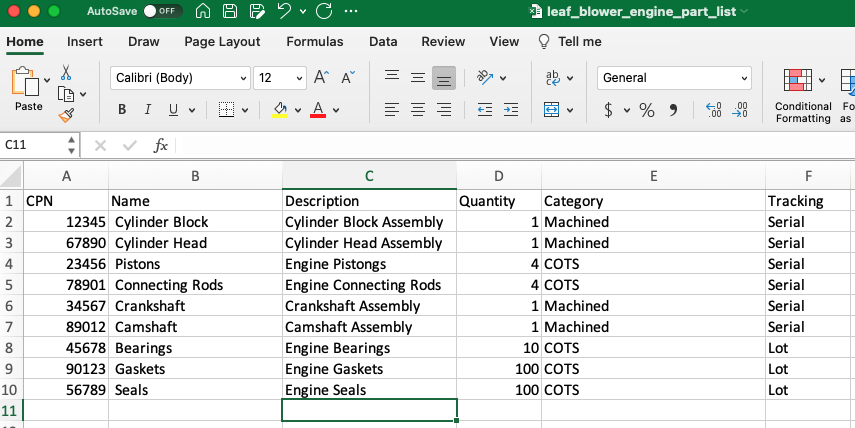
The dialog displays the required fields, like Part number, Revision, Tracking type, Quantity, and Category. There are also some optional fields. These are the only fields of an eBOM that are available for import.
-
Click
Select File to Import. -
A spreadsheet ready for import will look like this:
-
-
-
Click
+ Upload Filesto bring up the Open File dialog. -
Navigate to your import Excel file and choose
Opento import.
The eBOM was successfully imported for the part! If any items in the spreadsheet are new and did not exist in the Parts Library, they will automatically be created. If a part number from the spreadsheet matches an existing part in the library, the import process will use the existing part and not create a new one.