Categories
Categories help organize and classify parts throughout your Boltline organization. Define custom categories that match your part taxonomy and make parts easier to find and manage.
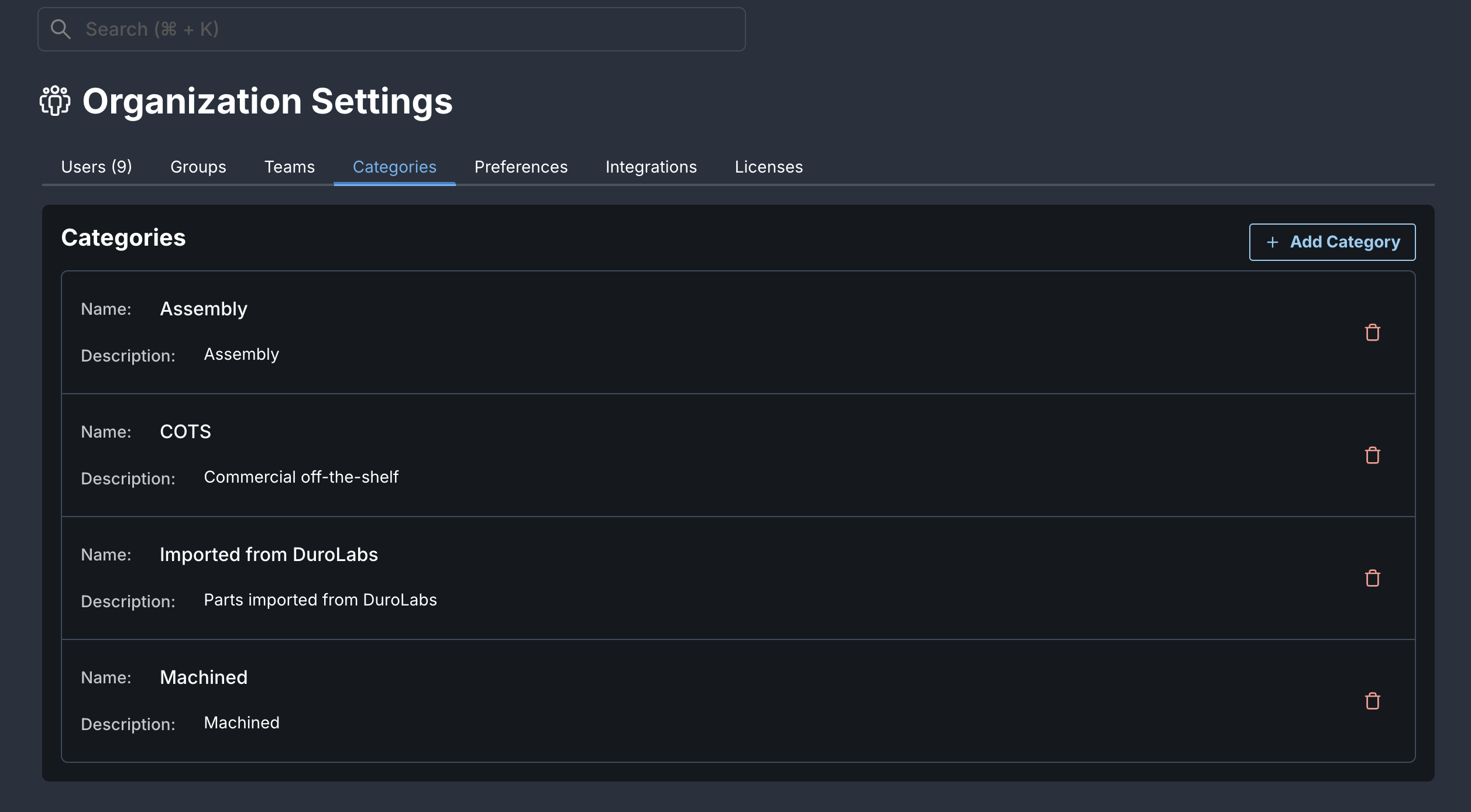
Add a New Category
Only Organization Owners and Admins can create, edit, or delete categories.
- Navigate to Organization > Categories.
- Click + Add Category.
- Enter a descriptive category name (e.g., "Machined", "COTS", "Assembly").
- Click Save.
The category name and description do not need to be unique.
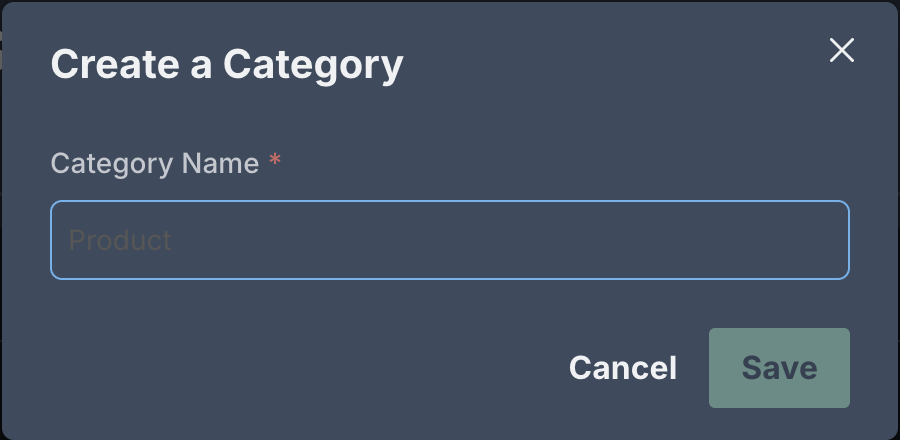
The new category is now available when creating or editing parts throughout your organization.
Categories you define here are available organization-wide. See Part Detail for how categories are used with parts.
Edit Categories
- Navigate to Organization > Categories.
- Select the Name or Description of a category you want to edit.
- Update the field as needed
- Click Enter or leave the field. Your edits will be saved.
Delete Categories
- Navigate to Organization > Categories.
- Select the category you want to delete.
- Click trash can icon labelled Delete Category.
- Confirm the deletion by clicking the Delete button pop-up.
If parts are currently assigned to this category, you may need to reassign them to a different category before deletion. A pop-up will take you to a filtered page in the Parts Library showing the parts that must be reassigned before allowing deletion.