Groups
Organize users into functional groups for managing permissions and access control across your organization.
Only Organization Owners and Admins can create and manage groups, unless delegated through Preferences.
What are Groups?
Groups are permission-based collections of users that control access to specific features and functionality. Unlike Teams which organize users for workflow management, Groups are used to restrict who can perform certain actions like submitting orders or creating vendors.
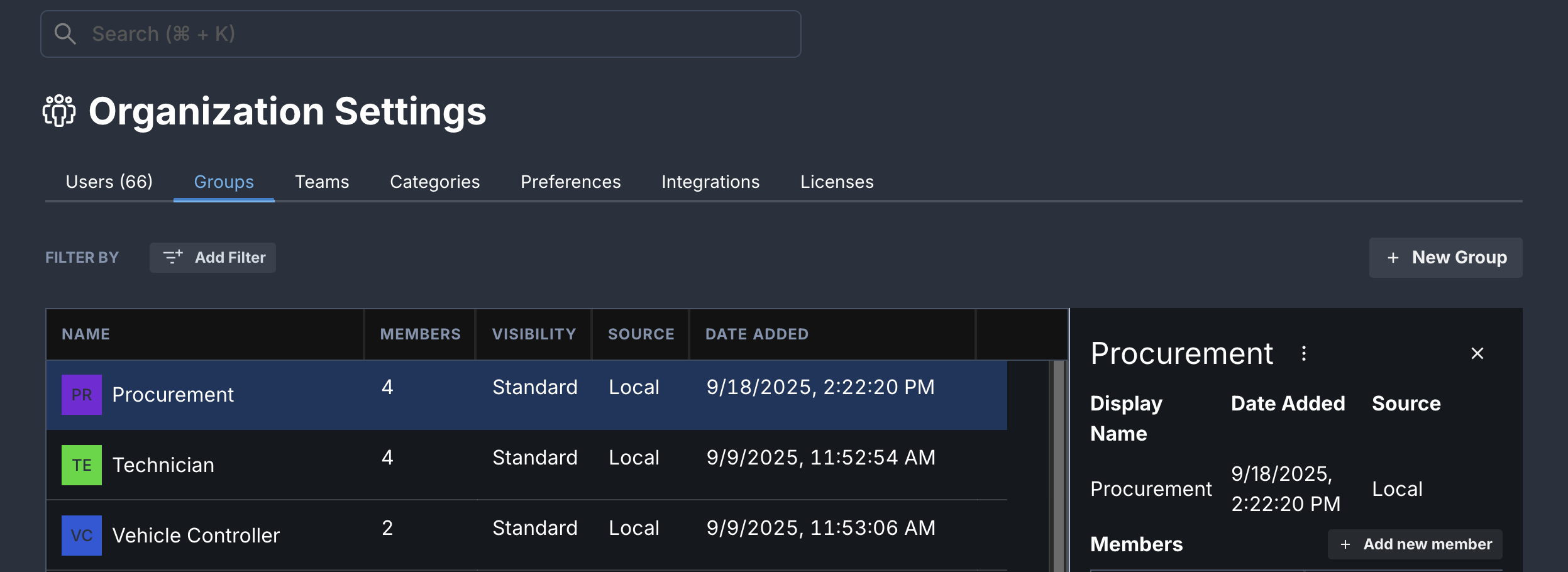
Create a Group
- Navigate to Organization > Groups.
- Click + New Group.
- Enter a Group Name.
- Add users to the group (now or later).
- Click Save.
Manage Group Members
Add Members to a Group
- Navigate to Organization > Groups.
- Select the group from the list.
- In the group details panel, click Add Members.
- Search for and select users to add.
- Click Add.
Remove Members from a Group
- Navigate to Organization > Groups.
- Select the group from the list.
- In the group details panel, find the member to remove.
- Click the Remove icon next to the member's name.
- Confirm the removal.
Group Permissions
Groups are used to control access to specific features through Preferences:
- Order Submission: Restrict which groups can submit orders
- Vendor Creation: Restrict which groups can create vendors
By default, all users can submit orders and create vendors. Groups allow you to restrict these actions to specific sets of users.
Group Managers
Organization Owners and Admins can delegate group management to a group without granting full administrative access.
To assign Group Managers, see Preferences > Group Management.
Delete a Group
- Navigate to Organization > Groups.
- Select the group to delete.
- Click Delete Group.
- Confirm the deletion.
Deleting a group will remove any permission restrictions associated with that group. Ensure affected users have alternative access before deleting.
Groups vs. Teams
| Feature | Groups | Teams |
|---|---|---|
| Purpose | Permission and access control | Workflow organization and collaboration |
| Use Case | Restrict who can submit orders, create vendors | Organize users hierarchically, assign work |
| Structure | Flat membership | Hierarchical with parent-child relationships |
| Permissions | Controls access to specific features | Associated with workflows and projects |
Use Groups for permission management and Teams for workflow organization. They work together to give you flexible control over your organization.