Teams
Create and manage teams to organize users and assign work across your organization. Teams support hierarchical structures and can be associated with workflows, work plans, and projects.
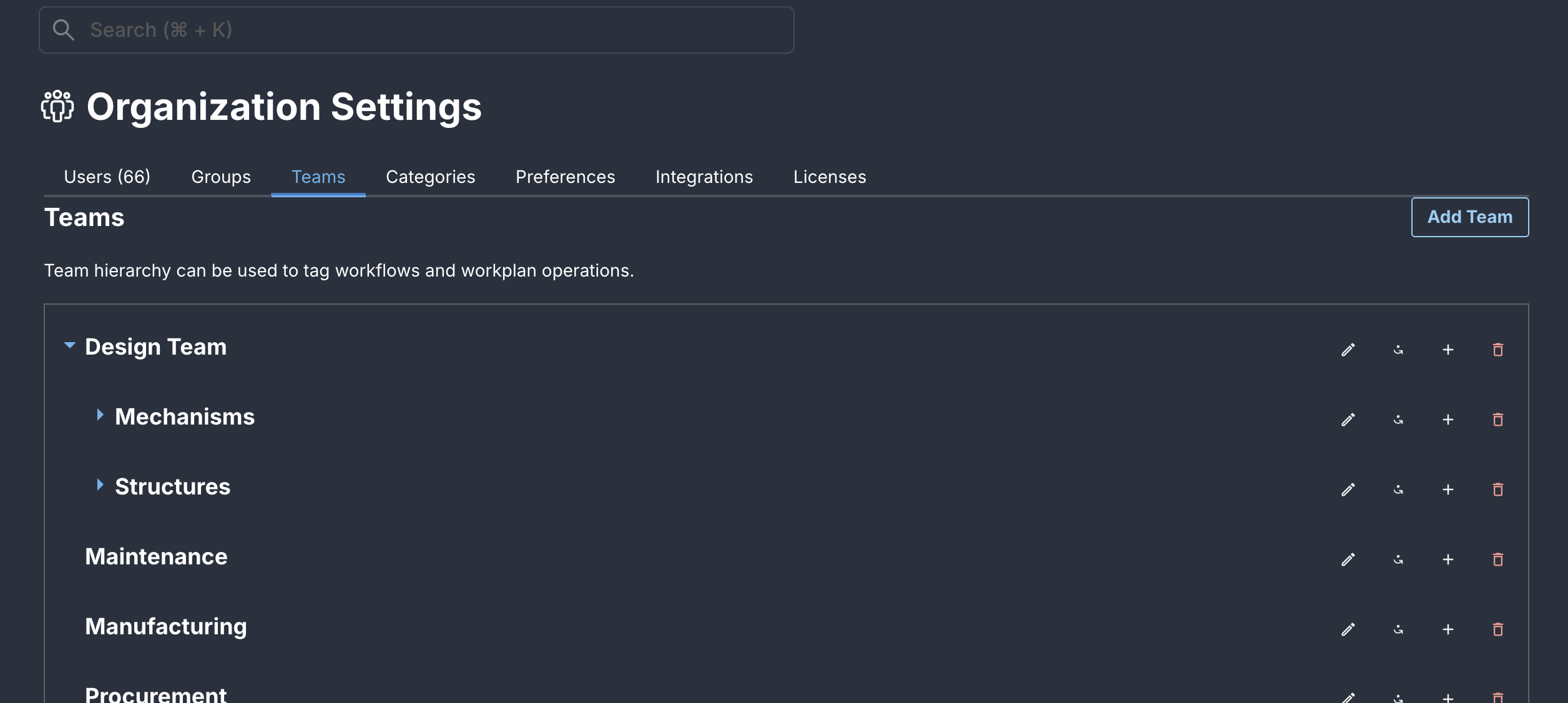
Only Organization Owners and Admins can create, edit, or delete teams.
Create a Team
- Navigate to Organization > Teams.
- Click Add Team.
- Enter a Name (e.g., "Engineering", "Production", "Quality Assurance").
- Optionally, select a Parent Team by clicking + at the right to create a hierarchy.
- Add Team Owners - users who manage the team.
- Click Create.
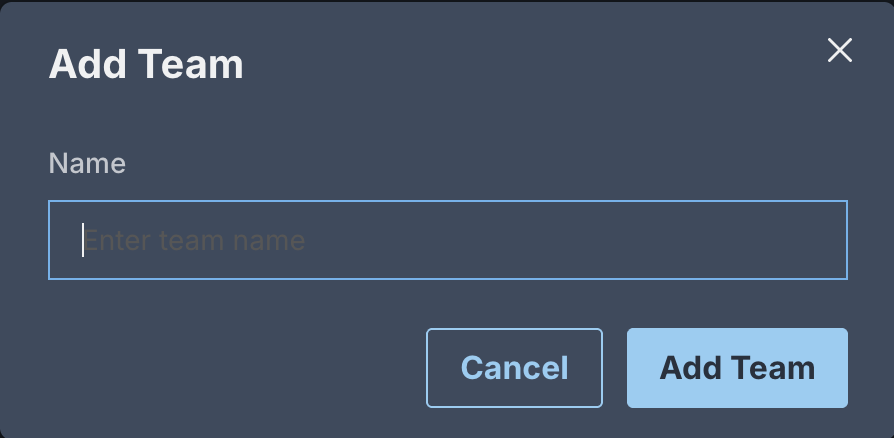
Your team is now created and ready to be assigned to workflows, work plans, and projects.
Team Hierarchy
Teams can be organized in parent-child relationships to reflect your organizational structure.
- After creating a team, click the Move Team button on left
- Select a Parent Team to nest it under another team.
- Teams can have multiple levels of hierarchy (e.g., Engineering > Hardware > Electrical).
- Child teams inherit context from their parent teams.
Build team hierarchies that match your organizational structure, whether flat or nested.
Team Owners
Team owners manage the team and its associated resources.
- When creating a team, select one or more users as Team Owners.
- Team owners can manage team membership and associated work.
- Multiple owners can be assigned to distribute management responsibilities.
Assign Teams to Work
Teams can be associated with various work items:
- Workflows: Assign teams to workflows for collaborative task management
- Work Plans: Associate teams with work plans for execution
- Workflow Cards: Assign cards to teams for tracking
Use teams in access restrictions to control who can submit orders or create vendors based on team membership.
Edit a Team
- Navigate to Organization > Teams.
- Select the team you want to edit and click the Edit icon at right
- Update the team name.
- Click Rename Team to finalize the edit.
Delete a Team
- Navigate to Organization > Teams.
- Select the team you want to delete.
- Click Delete Team, the trash can icon at right.
- Confirm the deletion.
If the team has child teams, they will be automatically reassociated to the parent team (if one exists) when you delete this team.